Howard the Alien

Intune Tools

Microsoft Intune tenant inventory & management

Scroll to explore

See it in action

IntuneTools — Inventory Explorer
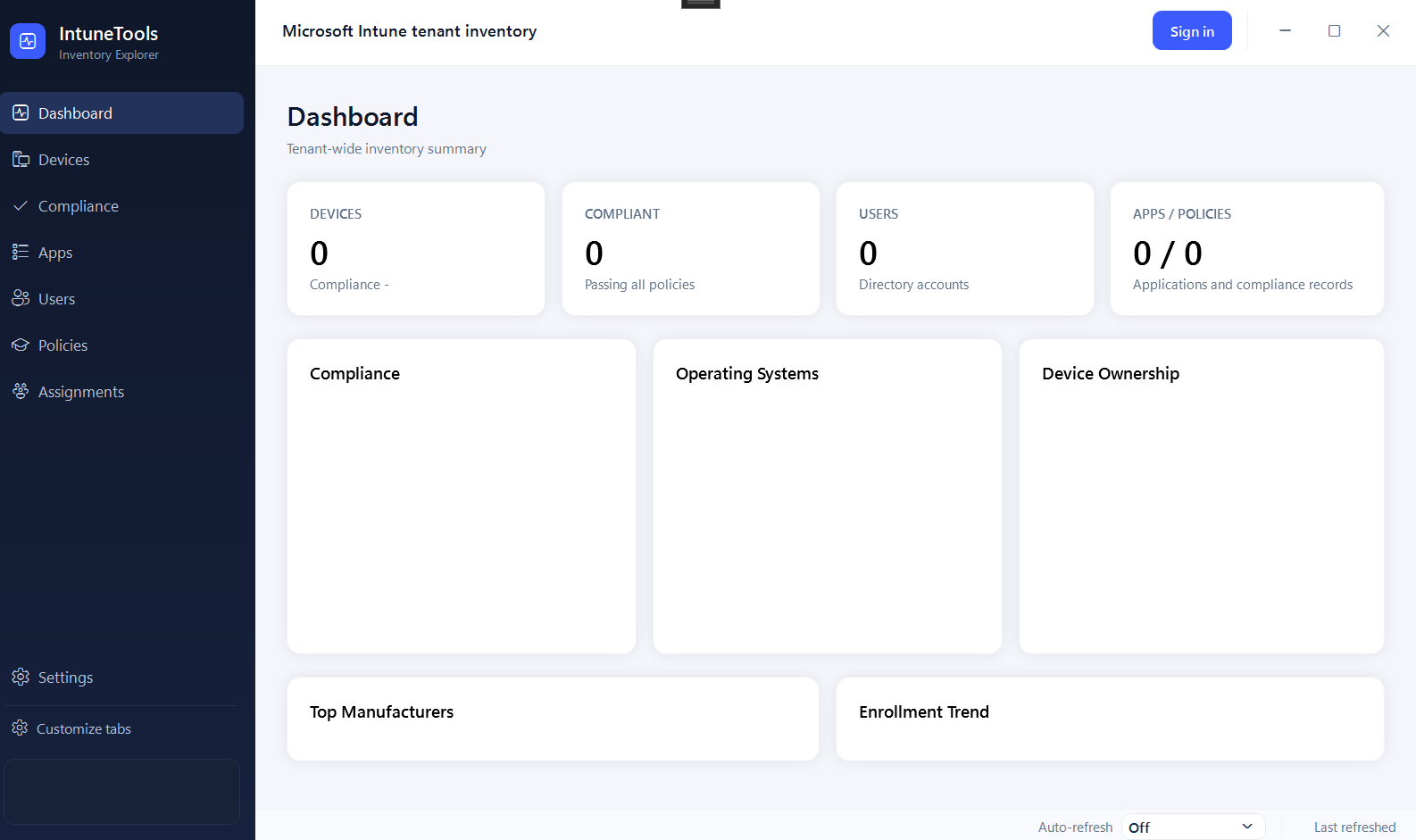
Intune Tools – Inventory Explorer dashboard

Everything you need to manage your tenant

Authentication

  • Microsoft Entra (Azure AD) sign-in via MSAL interactive browser flow
  • Silent token refresh — automatically re-authenticates when tokens expire
  • Sign-out support

Dashboard

  • Summary stat cards: devices, compliance, encryption, users, apps, policies & profiles
  • Compliance donut chart (compliant / non-compliant / grace period / unknown / N/A)
  • OS distribution, device ownership, top-8 manufacturers, and 12-month enrollment trend charts

Devices

  • Full managed-device list with OS, compliance, model, last sync, and more
  • Filter by OS, compliance state, free-text, and "stale only" toggle
  • Bulk lookup by pasting a list of device names
  • Per-device Entra group membership side panel
  • Right-click to copy cell or full row; open device directly in Intune portal
  • Configurable columns, CSV export, and Entra-format group import CSV

Compliance

  • Device compliance list with state filter (Compliant / Non-Compliant / Grace Period / Unknown)
  • Per-device detail panel showing all individual policy states
  • Compliance summary stats, donut chart, and OS breakdown table
  • CSV export and configurable visible columns

Users

  • Entra user list with display name, UPN, email, status, license count, department & job title
  • Filter by account status and free-text search
  • Per-user group membership side panel
  • Enabled/disabled count summary, configurable columns, and CSV export

Apps

  • Intune mobile app list with name, publisher, type, publishing state, and dates
  • Filter by app type and free-text search
  • Configurable columns and CSV export

Policies

  • Two-tab view: Compliance Policies and Configuration Profiles
  • Search and filter by name across both tabs
  • Policy and profile count badges
  • CSV export for each tab

Assignments

  • Browse all app, compliance policy, and configuration profile assignments by Entra group
  • Category tabs: Required App, Available App, Compliance Policy, Device Configuration, Scripts & more
  • Orphaned assignment detection — flags assignments targeting deleted groups
  • CSV export of group assignments or orphaned assignments

Global Search

  • Cross-entity search covering devices, users, apps, compliance policies, and config profiles simultaneously
  • Results grouped by entity type
  • Selecting a result navigates to the relevant page with search pre-filled

Settings

  • Configurable auto-refresh interval (disabled, 5 min, 15 min, 30 min, 1 hour)
  • Configurable stale-sync threshold (7 – 90 days) used for stale device highlighting
  • Settings persisted to disk

Infrastructure

  • In-app toast notifications (info, success, warn, error) with 3.5 s auto-dismiss
  • File-based daily log rotation (14-day retention) in %AppData%\IntuneTools\logs
  • MVVM architecture via CommunityToolkit.Mvvm throughout

Up and running in minutes

1

Register an App in Entra

  1. Sign in to the Azure Portal.
  2. Navigate to Microsoft Entra ID → App registrations → New registration.
  3. Give it a name (e.g. IntuneTools), leave the default account type, and set the redirect URI:
    • Platform: Public client / native
    • URI: http://localhost
  4. Click Register and copy the Application (client) ID — you'll need it in Step 3.
2

Grant API Permissions

In your new app registration go to API permissions → Add a permission → Microsoft Graph → Delegated permissions and add:

Permission Purpose
DeviceManagementManagedDevices.Read.AllRead managed devices
DeviceManagementApps.Read.AllRead apps
DeviceManagementConfiguration.Read.AllRead config profiles
DeviceManagementRBAC.Read.AllRead compliance policies
Device.Read.AllRead Entra device objects
Group.Read.AllRead Entra group memberships
User.Read.AllRead users

Click Grant admin consent for your tenant (requires Global Admin or Privileged Role Admin).

3

Configure appsettings.json

In the same folder as IntuneTools.exe, open or create appsettings.json:

JSON appsettings.json
{
  "ClientId": "xxxxxxxx-xxxx-xxxx-xxxx-xxxxxxxxxxxx",
  "TenantId": "common"
}
  • ClientId — the Application (client) ID from Step 1.
  • TenantId — use "common" for any tenant, or your specific tenant ID to restrict sign-in.